> ## Documentation Index
> Fetch the complete documentation index at: https://prefect-bd373955-pytest-markdown.mintlify.site/llms.txt
> Use this file to discover all available pages before exploring further.
# Host Prefect server
> Learn how to self-host your own Prefect server instance.
To host a Prefect server instance on Kubernetes, check out the prefect-server [Helm chart](https://github.com/PrefectHQ/prefect-helm/tree/main/charts/prefect-server).
After installing Prefect, you have a Python SDK client that can communicate with
either [Prefect Cloud](/3.0rc/manage/cloud/) or a self-hosted Prefect server, backed by a database and a UI.
Prefect Cloud and a self-hosted Prefect server instance share a common set of capabilities. Prefect Cloud has these additional features:
* [Workspaces](/3.0rc/manage/cloud/workspaces/): isolated environments to organize your flows, deployments, and flow runs
* [Automations](/3.0rc/automate/events/automations-triggers/): configure triggers, actions, and
notifications in response to real-time monitoring events
* [Email notifications](/3.0rc/automate/events/automations-triggers/): send email alerts from Prefect's
servers based on automation triggers
* [Service accounts](/3.0rc/manage/cloud/manage-users/service-accounts/): configure API access for running workers or
executing flow runs on remote infrastructure
* [Custom role-based access controls (RBAC)](/3.0rc/manage/cloud/manage-users/manage-roles/): assign users granular
permissions to perform activities within an account or workspace
* [Single Sign-on (SSO)](/3.0rc/manage/cloud/manage-users/configure-sso/): authentication using your identity provider
* [Audit Logs](/3.0rc/manage/cloud/manage-users/audit-logs/): a record of user activities to monitor security and compliance
## Prefect server installation notes
Your self-hosted server must meet the following requirements and configuration settings.
### SQLite
SQLite is not packaged with the Prefect installation. But most systems already have SQLite installed, and it is typically bundled with Python.
If you host your own Prefect server instance with a SQLite database, certain Linux versions of SQLite can be problematic.
Compatible versions include Ubuntu 22.04 LTS and Ubuntu 20.04 LTS.
To confirm SQLite is installed, run:
```bash
sqlite3 --version
```
### Use a self-signed SSL certificate
When using a self-signed SSL certificate, you need to configure your environment to trust the certificate.
Add the certificate to your system bundle and point your tools to use that bundle by configuring the
`SSL_CERT_FILE` environment variable.
If the certificate is not part of your system bundle, set the
`PREFECT_API_TLS_INSECURE_SKIP_VERIFY` to `True` to disable certificate verification altogether.
Disabling certificate validation is insecure and only suggested as an option for testing.
### Proxies
Prefect supports communicating with proxies through environment variables.
Whether you are using Prefect Cloud or hosting your own Prefect server instance, set `HTTPS_PROXY` and
`SSL_CERT_FILE` in your environment, and the underlying network libraries route Prefect’s requests appropriately.
Alternatively, the Prefect library connects to the API through any proxies you have listed in the `HTTP_PROXY` or
`ALL_PROXY` environment variables.
You may also use the `NO_PROXY` environment variable to specify which hosts should not pass through the proxy.
For more information about these environment variables, see the [cURL documentation](https://everything.curl.dev/usingcurl/proxies/env).
## Run a local Prefect server
1. Spin up a local Prefect server UI with the `prefect server start` CLI command in the terminal:
```bash
prefect server start
```
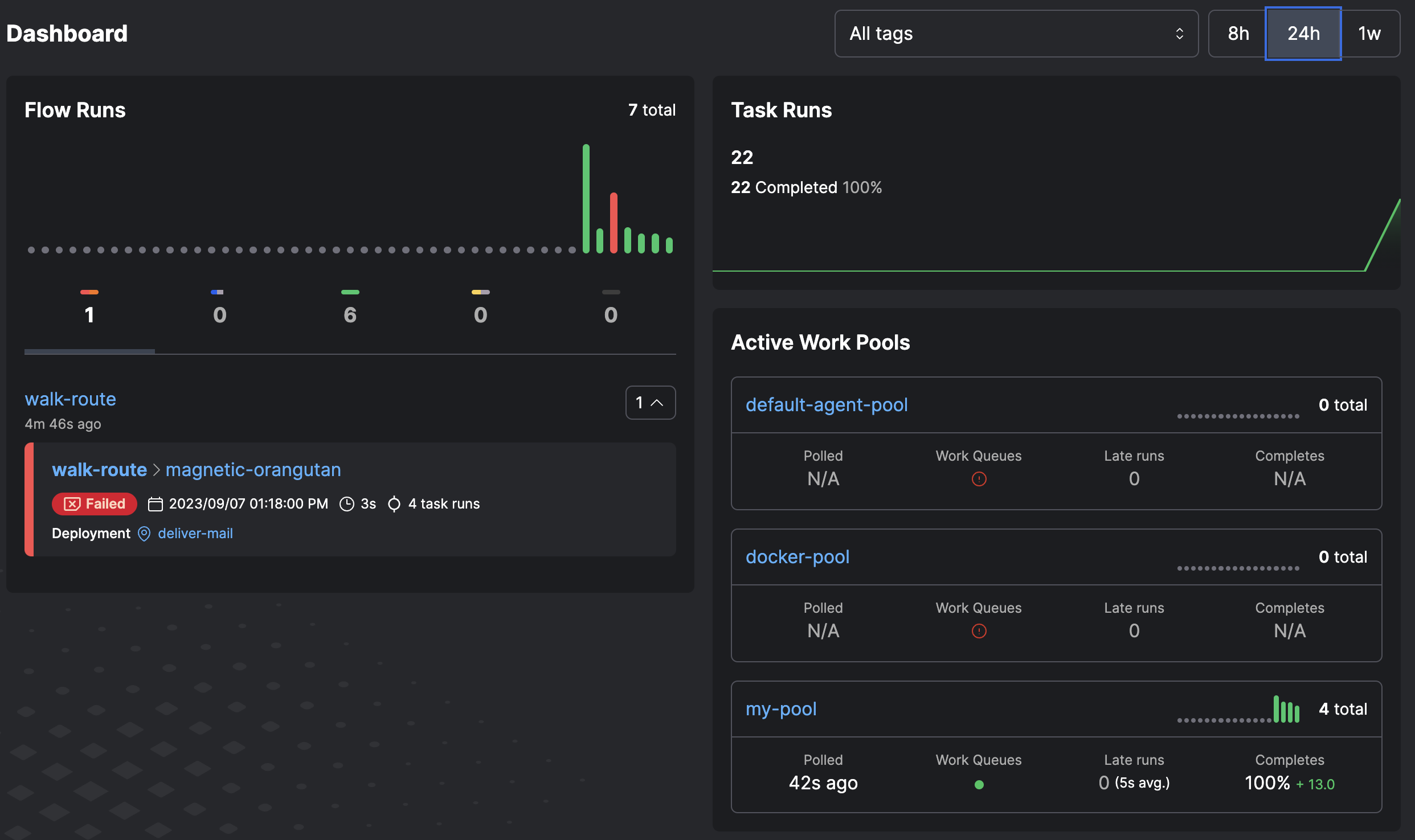
2. Open the URL for the Prefect server UI ([http://127.0.0.1:4200](http://127.0.0.1:4200) by default) in a browser.
3. Shut down the Prefect server with ctrl + c in the terminal.
### Configure a Prefect server instance
Go to your terminal session and run this command to set the API URL to point to a Prefect server instance:
```bash
prefect config set PREFECT_API_URL="http://127.0.0.1:4200/api"
```
You must set the API server address, `PREFECT_API_URL`, to use Prefect within a container, such as a Docker container.
You can save the API server address in a [Prefect profile](/3.0rc/manage/configure-client/). Whenever that profile is
active, the API endpoint is at that address.
See [Profiles and configuration](/3.0rc/manage/configure-client/) for more information on profiles and configurable Prefect settings.
## The Prefect database
The Prefect database persists data to track the state of your flow runs and related Prefect concepts, including:
* Flow run and task run state
* Run history
* Logs
* Deployments
* Flow and task run concurrency limits
* Storage blocks for flow and task results
* Variables
* Artifacts
* Work pool status
Prefect supports the following databases:
* SQLite (default in Prefect): Recommended for lightweight, single-server deployments. SQLite requires essentially no setup.
* PostgreSQL: Best for connecting to external databases, but requires additional setup (such as Docker).
Prefect uses the [`pg_trgm`](https://www.postgresql.org/docs/current/pgtrgm.html) extension, so it must be installed and enabled.
### Using the database
A local SQLite database is the default database and is configured upon Prefect installation.
The database is located at `~/.prefect/prefect.db` by default.
To reset your database, run the CLI command:
```bash
prefect server database reset -y
```
This command clears all data and reapplies the schema.
### Database settings
Prefect provides several settings for configuring the database. The default settings are:
```bash
PREFECT_API_DATABASE_CONNECTION_URL='sqlite+aiosqlite:///${PREFECT_HOME}/prefect.db'
PREFECT_API_DATABASE_ECHO='False'
PREFECT_API_DATABASE_MIGRATE_ON_START='True'
PREFECT_API_DATABASE_PASSWORD='None'
```
Save a setting to your active Prefect profile with `prefect config set`.
### Configure a PostgreSQL database
Connect Prefect to a PostgreSQL database by setting the following environment variable:
```bash
prefect config set PREFECT_API_DATABASE_CONNECTION_URL="postgresql+asyncpg://postgres:yourTopSecretPassword@localhost:5432/prefect"
```
The above environment variable assumes:
* You have a username called `postgres`
* Your password is set to `yourTopSecretPassword`
* Your database runs on the same host as the Prefect server instance, `localhost`
* You use the default PostgreSQL port `5432`
* Your PostgreSQL instance has a database called `prefect`
#### Quickstart: configure a PostgreSQL database with Docker
Start a PostgreSQL instance to use as your Prefect database with the following command
(which starts a Docker container running PostgreSQL):
```bash
docker run -d --name prefect-postgres -v prefectdb:/var/lib/postgresql/data -p 5432:5432 -e POSTGRES_USER=postgres -e POSTGRES_PASSWORD=yourTopSecretPassword -e POSTGRES_DB=prefect postgres:latest
```
The above command:
* Pulls the [latest](https://hub.docker.com/_/postgres?tab=tags) version of the official `postgres` Docker image,
which is compatible with Prefect.
* Starts a container with the name `prefect-postgres`.
* Creates a database `prefect` with a user `postgres` and `yourTopSecretPassword` password.
* Mounts the PostgreSQL data to a Docker volume called `prefectdb` to provide persistence if you ever have to restart or
rebuild that container.
Run the command below to set your current Prefect Profile to the PostgreSQL database instance running in your Docker container.
```bash
prefect config set PREFECT_API_DATABASE_CONNECTION_URL="postgresql+asyncpg://postgres:yourTopSecretPassword@localhost:5432/prefect"
```
### Confirm your PostgreSQL database configuration
Inspect your Prefect profile to confirm that the environment variable has been properly set:
```bash
prefect config view --show-sources
```
```bash
You should see output similar to the following:
PREFECT_PROFILE='my_profile'
PREFECT_API_DATABASE_CONNECTION_URL='********' (from profile)
PREFECT_API_URL='http://127.0.0.1:4200/api' (from profile)
```
Start the Prefect server to use your PostgreSQL database instance:
```bash
prefect server start
```
### In-memory database
To use an in-memory SQLite database, set the following environment variable:
```bash
prefect config set PREFECT_API_DATABASE_CONNECTION_URL="sqlite+aiosqlite:///file::memory:?cache=shared&uri=true&check_same_thread=false"
```
**Use SQLite database for testing only**
SQLite does not support multiprocessing. For high orchestration volume, use PostgreSQL.
### Migrations
Prefect uses [Alembic](https://alembic.sqlalchemy.org/en/latest/) to manage database migrations. Alembic is a
database migration tool to use with the SQLAlchemy Database Toolkit for Python. Alembic provides a framework for
generating and applying schema changes to a database.
Apply migrations to your database with the following commands:
To upgrade:
```bash
prefect server database upgrade -y
```
To downgrade:
```bash
prefect server database downgrade -y
```
Use the `-r` flag to specify a specific migration version to upgrade or downgrade to.
For example, to downgrade to the previous migration version, run:
```bash
prefect server database downgrade -y -r -1
```
or to downgrade to a specific revision:
```bash
prefect server database downgrade -y -r d20618ce678e
```
To downgrade all migrations, use the `base` revision.
See the [contributing docs](/3.0rc/contributing/overview/#adding-database-migrations) to create new database migrations.
## Notifications
[Prefect Cloud](/3.0rc/manage/cloud/) gives you access to a hosted platform with Workspace and User controls, Events, and Automations.
Prefect Cloud has an option for automation notifications. The more limited Notifications option is provided for the
self-hosted Prefect server.
Notifications enable you to set up alerts that are sent when a flow enters any state you specify.
When your flow and task runs changes [state](/3.0rc/develop/manage-states/),
Prefect notes the state change and checks whether the new state matches any notification policies. If it does, a new notification is queued.
Prefect supports sending notifications through:
* Custom webhook
* Discord webhook
* Mattermost webhook
* Microsoft Teams webhook
* Opsgenie webhook
* PagerDuty webhook
* Sendgrid email
* Slack webhook
* Twilio SMS
**Notifications in Prefect Cloud**
Prefect Cloud uses the robust [Automations](/3.0rc/automate/events/automations-triggers/) interface to
enable notifications related to flow run state changes and work pool status.
### Configure notifications
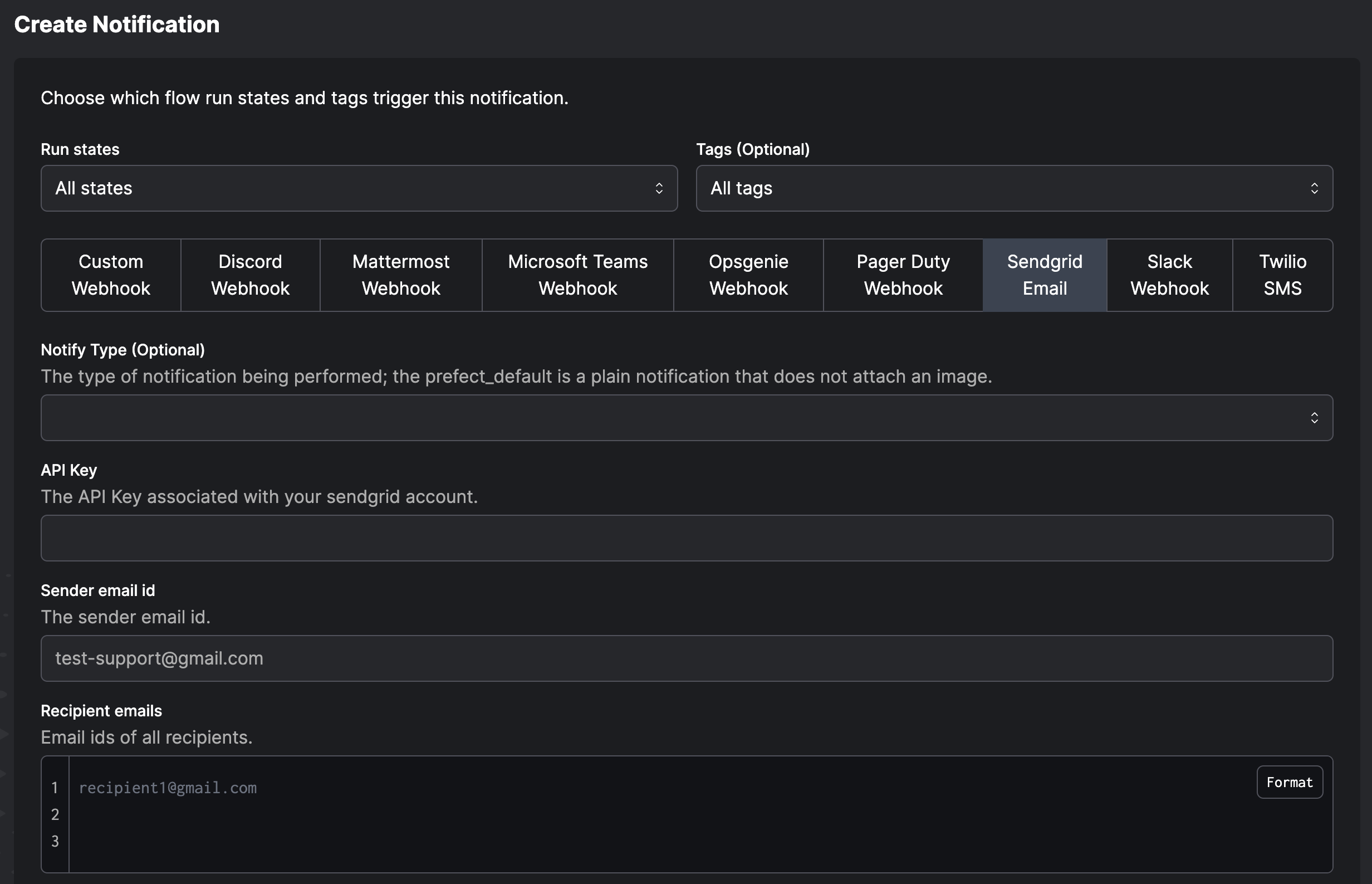
To configure a notification in a Prefect server, go to the **Notifications** page and select **Create Notification** or the **+** button.
You can choose:
* Which run states should trigger a notification
* Tags to filter which flow runs are covered by the notification
* Whether to send an email, a Slack message, Microsoft Teams message, or use another services
For email notifications (supported on Prefect Cloud only), the configuration requires email addresses to which the message is sent.
For Slack notifications, the configuration requires webhook credentials for your Slack and the channel to which the message is sent.
For example, to get a Slack message if a flow with a `daily-etl` tag fails, the notification will read:
> If a run of any flow with **daily-etl** tag enters a **failed** state, send a notification to **my-slack-webhook**
When the conditions of the notification are triggered, you’ll receive a message:
> The **fuzzy-leopard** run of the **daily-etl** flow entered a **failed** state at **22-06-27 16:21:37 EST**.
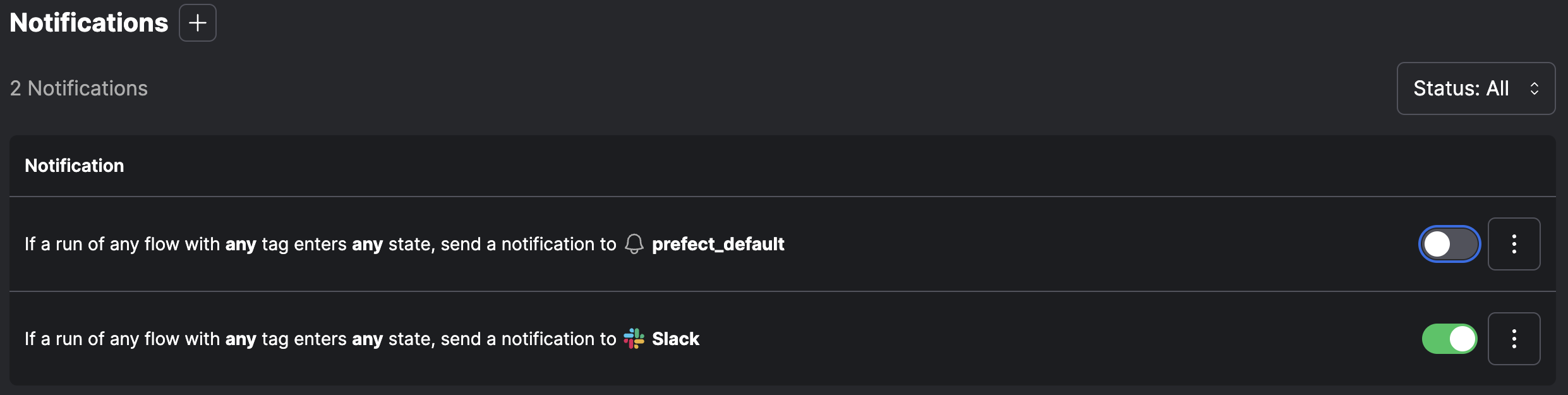
On the **Notifications** page you can pause, edit, or delete any configured notification.