> ## Documentation Index
> Fetch the complete documentation index at: https://prefect-bd373955-pytest-markdown.mintlify.site/llms.txt
> Use this file to discover all available pages before exploring further.
# Work pools and workers
> Prefect work pools route deployment flow runs to workers. Prefect workers poll work pools for new runs to execute.
Work pools and workers bridge the Prefect *orchestration environment* with your *execution environment*.
When a [deployment](/3.0rc/deploy/serve-flows/) creates a flow run, it is submitted to a specific work pool for scheduling.
A worker running in the execution environment polls its respective work pool for new runs to execute; or the work pool\
submits flow runs to serverless infrastructure directly, depending on your configuration.
**Work pool-based deployments**
This guide focuses on work pools and workers. For guidance on work pool-based deployments, see
[Deploy flows to work pools and workers
](deploy/work-pools/prefect-deploy#work-pool-based-deployments).
## Work pool overview
Work pools organize work for execution. Work pools have types corresponding to the infrastructure to execute the flow code,
as well as the delivery method of work to that environment. Pull work pools require workers to poll the work
pool for flow runs to execute. [Push work pools](/3.0rc/deploy/dynamic-infra/push-runs-serverless) submit runs directly to your
serverless infrastructure providers such as Google Cloud Run, Azure Container Instances, and AWS ECS without the need for an agent or worker.
[Managed work pools](/3.0rc/deploy/work-pools/managed-execution) are administered by Prefect and handle the submission and execution of code on your behalf.
**Work pools are like pub/sub topics**
Work pools help coordinate (potentially many) deployments with (potentially many) workers
through a known channel: the pool itself. This is similar to how "topics" are used to connect producers and consumers in a
pub/sub or message-based system. By switching a deployment's work pool, users can quickly change the worker that will execute their runs,
making it easy to promote runs through environments—or even to debug locally.
Users can control aspects of work pool behavior, such as how many runs the pool allows to run concurrently. You can modify these options
at any time, and any workers requesting work for a specific pool only see matching flow runs.
### Work pool configuration
You can configure work pools by using any of the following:
* Prefect UI
* Prefect CLI commands
* [Prefect REST API](/3.0rc/api-ref/rest-api/)
* [Terraform provider for Prefect Cloud](https://registry.terraform.io/providers/PrefectHQ/prefect/latest/docs/resources/work_pool)
To manage work pools in the UI, click the **Work Pools** icon. This displays a list of currently configured work pools.
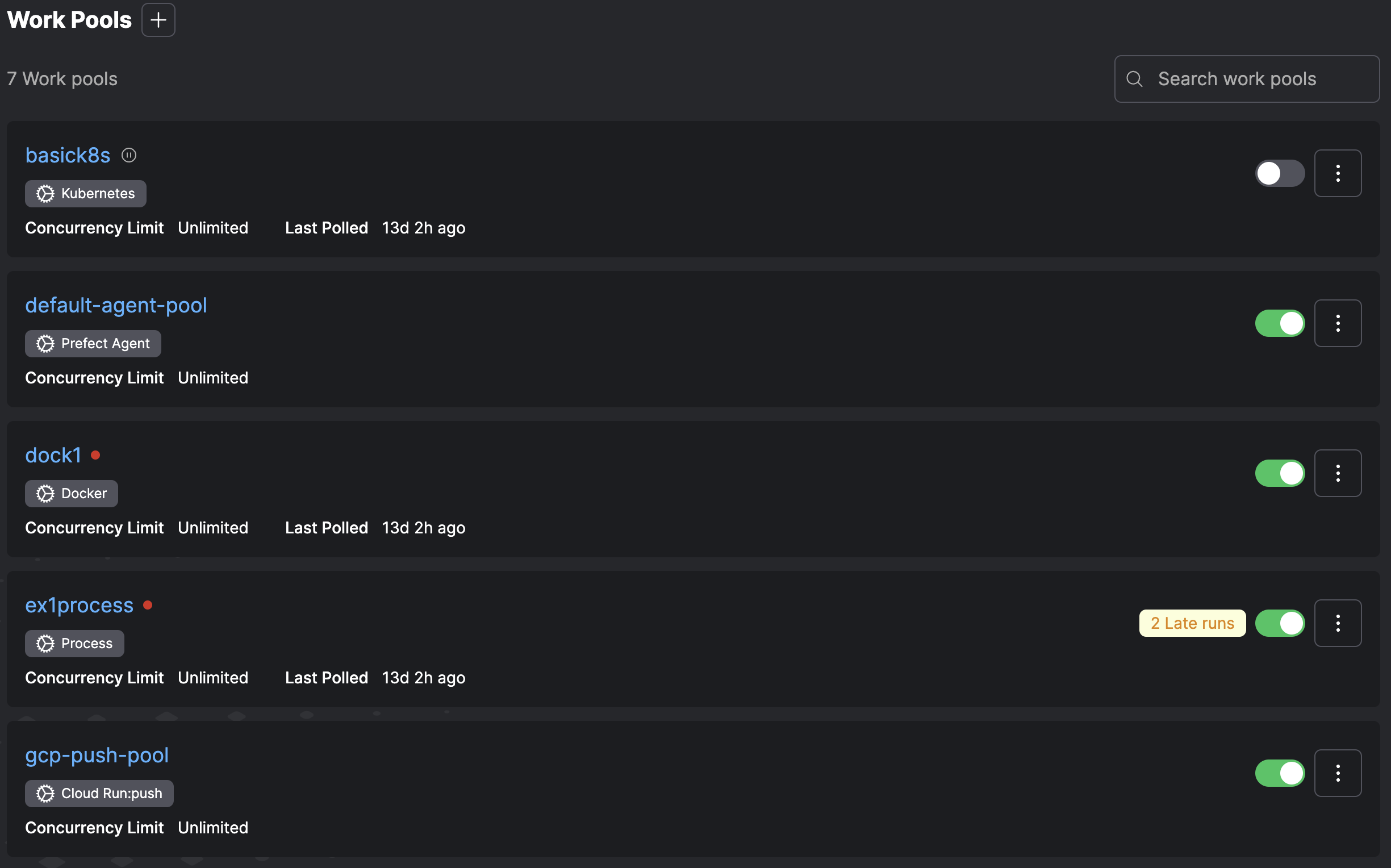
You can pause a work pool from this page by using the toggle.
Select the **+** button to create a new work pool. You can specify the details for work served by this work pool.
To create a work pool through the Prefect CLI, use the `prefect work-pool create` command:
```bash
prefect work-pool create [OPTIONS] NAME
```
`NAME` is a required, unique name for the work pool.
Optional configuration parameters to filter work on the pool include:
| Option | Description |
| -------------------------------------------------- | ------------------------------------------------------------------------------------------------------------------------------------------------------ |
| `--paused` | If provided, the work pool is created in a paused state. |
| `--type` | The type of infrastructure that can execute runs from this work pool. |
| `--set-as-default` | Whether to use the created work pool as the local default for deployment. |
| `--base-job-template` | The path to a JSON file containing the base job template to use. If unspecified, Prefect uses the default base job template for the given worker type. |
For example, to create a work pool called `test-pool`, run:
```bash
prefect work-pool create test-pool
```
### Work pool types
If you don't use the `--type` flag to specify an infrastructure type, you are prompted to select from the following options:
| Infrastructure Type | Description |
| ------------------------------------ | ------------------------------------------------------------------------------------------------------------------------------------------------------------------------------------------------------------------------------------------------- |
| Process | Execute flow runs as subprocesses on a worker. Works well for local execution when first getting started. |
| AWS Elastic Container Service | Execute flow runs within containers on AWS ECS. Works with EC2 and Fargate clusters. Requires an AWS account. |
| Azure Container Instances | Execute flow runs within containers on Azure's Container Instances service. Requires an Azure account. |
| Docker | Execute flow runs within Docker containers. Works well for managing flow execution environments through Docker images. Requires access to a running Docker daemon. |
| Google Cloud Run | Execute flow runs within containers on Google Cloud Run. Requires a Google Cloud Platform account. |
| Google Cloud Run V2 | Execute flow runs within containers on Google Cloud Run (V2 API). Requires a Google Cloud Platform account. |
| Google Vertex AI | Execute flow runs within containers on Google Vertex AI. Requires a Google Cloud Platform account. |
| Kubernetes | Execute flow runs within jobs scheduled on a Kubernetes cluster. Requires a Kubernetes cluster. |
| Google Cloud Run - Push | Execute flow runs within containers on Google Cloud Run. Requires a Google Cloud Platform account. Flow runs are pushed directly to your environment, without the need for a Prefect worker. |
| AWS Elastic Container Service - Push | Execute flow runs within containers on AWS ECS. Works with existing ECS clusters and serverless execution through AWS Fargate. Requires an AWS account. Flow runs are pushed directly to your environment, without the need for a Prefect worker. |
| Azure Container Instances - Push | Execute flow runs within containers on Azure's Container Instances service. Requires an Azure account. Flow runs are pushed directly to your environment, without the need for a Prefect worker. |
| Modal - Push | Execute flow runs on Modal. Requires a Modal account. Flow runs are pushed directly to your Modal workspace, without the need for a Prefect worker. |
| Prefect Managed | Execute flow runs within containers on Prefect managed infrastructure. |
| Infrastructure Type | Description |
| ----------------------------- | ------------------------------------------------------------------------------------------------------------------------------------------------------------------ |
| Process | Execute flow runs as subprocesses on a worker. Works well for local execution when first getting started. |
| AWS Elastic Container Service | Execute flow runs within containers on AWS ECS. Works with EC2 and Fargate clusters. Requires an AWS account. |
| Azure Container Instances | Execute flow runs within containers on Azure's Container Instances service. Requires an Azure account. |
| Docker | Execute flow runs within Docker containers. Works well for managing flow execution environments through Docker images. Requires access to a running Docker daemon. |
| Google Cloud Run | Execute flow runs within containers on Google Cloud Run. Requires a Google Cloud Platform account. |
| Google Cloud Run V2 | Execute flow runs within containers on Google Cloud Run (V2 API). Requires a Google Cloud Platform account. |
| Google Vertex AI | Execute flow runs within containers on Google Vertex AI. Requires a Google Cloud Platform account. |
| Kubernetes | Execute flow runs within jobs scheduled on a Kubernetes cluster. Requires a Kubernetes cluster. |
On success, the command returns the details of the newly created work pool.
```bash
Created work pool with properties:
name - 'test-pool'
id - a51adf8c-58bb-4949-abe6-1b87af46eabd
concurrency limit - None
Start a worker to pick up flows from the work pool:
prefect worker start -p 'test-pool'
Inspect the work pool:
prefect work-pool inspect 'test-pool'
```
Set a work pool as the default for new deployments by adding the `--set-as-default` flag.
Which results in output similar to the following:
```bash
Set 'test-pool' as default work pool for profile 'default'
To change your default work pool, run:
prefect config set PREFECT_DEFAULT_WORK_POOL_NAME=
```
To update a work pool through the Prefect CLI, use the `prefect work-pool update` command:
```bash
prefect work-pool update [OPTIONS] NAME
```
`NAME` is the name of the work pool to update.
Optional configuration parameters you can specify to update the work pool include:
| Option | Description |
| -------------------------------------------------- | ------------------------------------------------------------------------------------------------------------------------------------------------------ |
| `--base-job-template` | The path to a JSON file containing the base job template to use. If unspecified, Prefect uses the default base job template for the given worker type. |
| `--description` | A description of the work pool. |
| `--concurrency-limit` | The maximum number of flow runs to run simultaneously in the work pool. |
**Managing work pools in CI/CD**
Version control your base job template by committing it as a JSON file to your repository. And control updates to your
work pools' base job templates with the `prefect work-pool update` command in your CI/CD pipeline. For example, you
use the following command to update a work pool's base job template to the contents of a file named `base-job-template.json`:
```bash
prefect work-pool update --base-job-template base-job-template.json my-work-pool
```
#### Base job template
Each work pool has a base job template that allows the customization of the behavior of the worker executing flow runs from the work pool.
The base job template acts as a contract defining the configuration passed to the worker for each flow run and the options available
to deployment creators to customize worker behavior per deployment.
A base job template comprises a `job_configuration` section and a `variables` section.
The `variables` section defines the fields available that are customized per deployment. The `variables` section follows the
[OpenAPI specification](https://swagger.io/specification/), which allows work pool creators to place limits on provided values
(for example, type, minimum, maximum).
The job configuration section takes the values provided in the variables section and translates them into a configuration.
It then gives this configuration to a worker when it executes a flow run.
The values in the `job_configuration` can use placeholders to reference values provided in the `variables` section.
Declare placeholders with double curly braces, for example, `{{ variable_name }}`. You can also hard-code `job_configuration` values.
Each worker type is configured with a default base job template, making it easy to start with a work pool.
The default base template defines values that pass to every flow run, but you can override on a per-deployment or per-flow run basis.
For example, if you create a `process` work pool named 'above-ground' through the CLI:
```bash
prefect work-pool create --type process above-ground
```
You see these configuration options available in the Prefect UI:
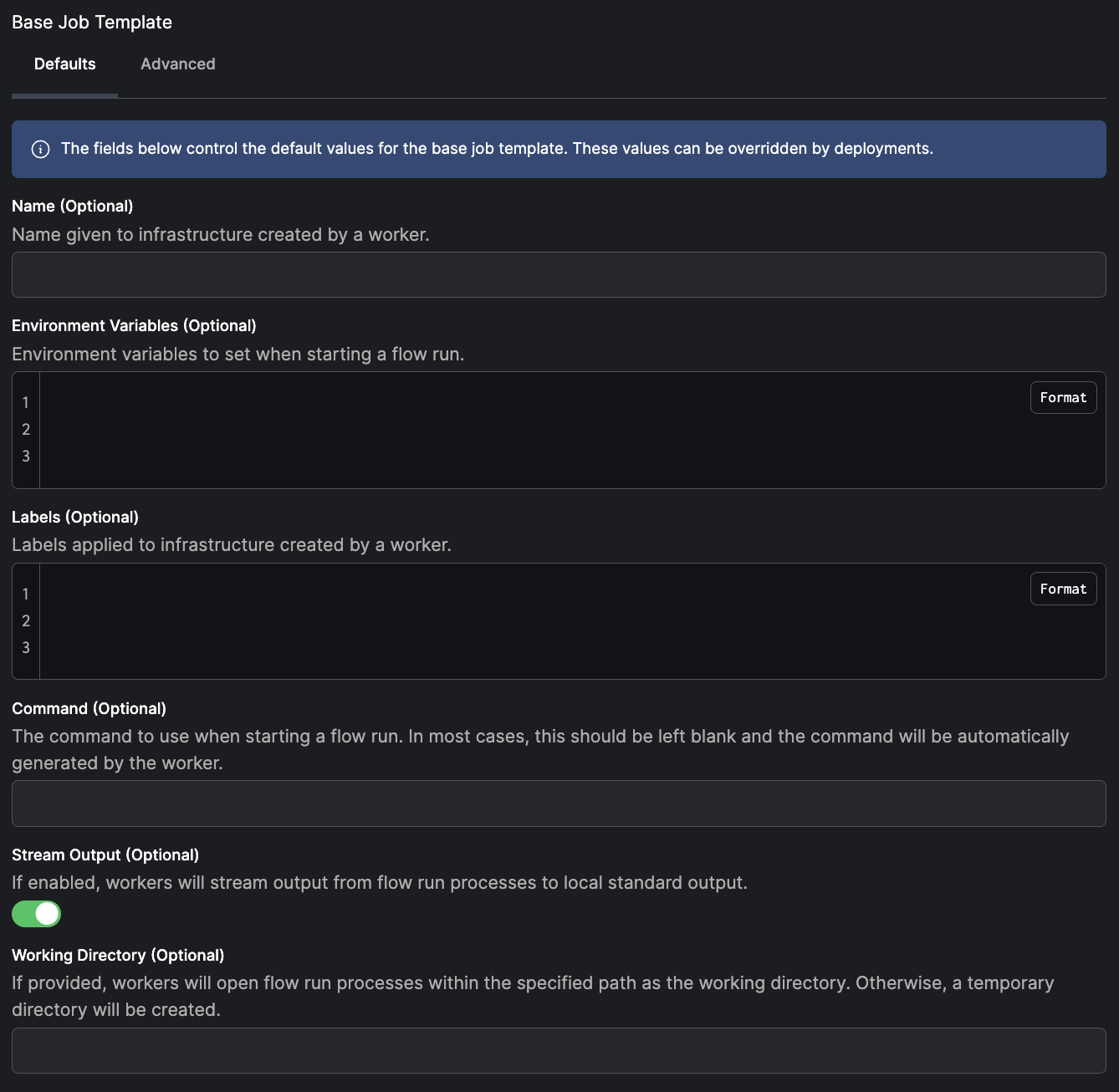
For a `process` work pool with the default base job template:
* set environment variables for spawned processes
* set the working directory to execute flows
* control whether the flow run output is streamed to workers' standard output
You can see an example of a JSON-formatted base job template with the 'Advanced' tab.
You can examine the default base job template for a given worker type by running:
```bash
prefect work-pool get-default-base-job-template --type process
```
```bash
{
"job_configuration": {
"command": "{{ command }}",
"env": "{{ env }}",
"labels": "{{ labels }}",
"name": "{{ name }}",
"stream_output": "{{ stream_output }}",
"working_dir": "{{ working_dir }}"
},
"variables": {
"type": "object",
"properties": {
"name": {
"title": "Name",
"description": "Name given to infrastructure created by a worker.",
"type": "string"
},
"env": {
"title": "Environment Variables",
"description": "Environment variables to set when starting a flow run.",
"type": "object",
"additionalProperties": {
"type": "string"
}
},
"labels": {
"title": "Labels",
"description": "Labels applied to infrastructure created by a worker.",
"type": "object",
"additionalProperties": {
"type": "string"
}
},
"command": {
"title": "Command",
"description": "The command to use when starting a flow run. In most cases, this should be left blank and the command will be automatically generated by the worker.",
"type": "string"
},
"stream_output": {
"title": "Stream Output",
"description": "If enabled, workers will stream output from flow run processes to local standard output.",
"default": true,
"type": "boolean"
},
"working_dir": {
"title": "Working Directory",
"description": "If provided, workers will open flow run processes within the specified path as the working directory. Otherwise, a temporary directory will be created.",
"type": "string",
"format": "path"
}
}
}
}
```
You can override each attribute on a per-deployment or per-flow run basis. When creating a deployment, you can
specify these overrides in the `deployments.work_pool.job_variables` section of a `prefect.yaml` file or in the `job_variables`
argument of a Python `flow.deploy` method.
For example, to turn off streaming output for a specific deployment, add the following to your `prefect.yaml`:
```yaml
deployments:
- name: demo-deployment
entrypoint: demo_project/demo_flow.py:some_work
work_pool:
name: above-ground
job_variables:
stream_output: false
```
Learn more about [overriding job variables](/3.0rc/deploy/dynamic-infra/customize).
**Advanced customization of the base job template**
For advanced use cases, create work pools with fully customizable job templates. This customization is available when
creating or editing a work pool on the 'Advanced' tab within the UI or when updating a work pool via the Prefect CLI.
Advanced customization is useful anytime the underlying infrastructure supports a high degree of customization.
In these scenarios a work pool job template allows you to expose a minimal and easy-to-digest set of options to deployment authors.
Additionally, these options are the *only* customizable aspects for deployment infrastructure, which are useful for restricting
functionality in secure environments. For example, the `kubernetes` worker type allows users to specify a custom job template\
to configure the manifest that workers use to create jobs for flow execution.
For more information and advanced configuration examples, see the [Kubernetes Worker](https://prefecthq.github.io/prefect-kubernetes/worker/)
documentation.
See more information about [overriding a work pool's job variables](/3.0rc/deploy/dynamic-infra/customize).
### View work pools
At any time, users can see and edit configured work pools in the Prefect UI.

To view work pools with the Prefect CLI, you can:
* List (`ls`) all available pools
* Inspect (`inspect`) the details of a single pool
* Preview (`preview`) scheduled work for a single pool
`prefect work-pool ls` lists all configured work pools for the server.
```bash
prefect work-pool ls
```
For example:
```bash
Work pools
┏━━━━━━━━━━━━┳━━━━━━━━━━━━━━━━━━━━━━━━━━━━━━━━━━━━━━━━━━━━━━━━━━━━━━━┳━━━━━━━━━━━━━━━━━━━┓
┃ Name ┃ Type ┃ ID ┃ Concurrency Limit ┃
┡━━━━━━━━━━━━╇━━━━━━━━━━━━━━━━━━━━━━━━━━━━━━━━━━━━━━━━━━━━━━━━━━━━━━━╇━━━━━━━━━━━━━━━━━━━┩
│ barbeque │ docker │ 72c0a101-b3e2-4448-b5f8-a8c5184abd17 │ None │
│ k8s-pool │ kubernetes │ 7b6e3523-d35b-4882-84a7-7a107325bb3f │ None │
| my-pool │ process │ cd6ff9e8-bfd8-43be-9be3-69375f7a11cd │ None │
└────────────┴────────────────┴──────────────────────────────────────┴───────────────────┘
(**) denotes a paused pool
```
`prefect work-pool inspect` provides all configuration metadata for a specific work pool by ID.
```bash
prefect work-pool inspect 'test-pool'
```
Outputs information similar to the following:
```bash
Workpool(
id='a51adf8c-58bb-4949-abe6-1b87af46eabd',
created='2 minutes ago',
updated='2 minutes ago',
name='test-pool',
filter=None,
)
```
`prefect work-pool preview` displays scheduled flow runs for a specific work pool by ID for the upcoming hour. The optional `--hours` flag lets you specify the number of hours to look ahead.
```bash
prefect work-pool preview 'test-pool' --hours 12
```
```bash
┏━━━━━━━━━━━━━━━━━┳━━━━━━━━━━━━━━━━━━━━━━━━━━━━┳━━━━━━━━━━━━━━┳━━━━━━━━━━━━━━━━━━━━━━━━━━━━━┓
┃ Scheduled Star… ┃ Run ID ┃ Name ┃ Deployment ID ┃
┡━━━━━━━━━━━━━━━━━╇━━━━━━━━━━━━━━━━━━━━━━━━━━━━╇━━━━━━━━━━━━━━╇━━━━━━━━━━━━━━━━━━━━━━━━━━━━━┩
│ 2022-02-26 06:… │ 741483d4-dc90-4913-b88d-0… │ messy-petrel │ 156edead-fe6a-4783-a618-21… │
│ 2022-02-26 05:… │ 14e23a19-a51b-4833-9322-5… │ unselfish-g… │ 156edead-fe6a-4783-a618-21… │
│ 2022-02-26 04:… │ deb44d4d-5fa2-4f70-a370-e… │ solid-ostri… │ 156edead-fe6a-4783-a618-21… │
│ 2022-02-26 03:… │ 07374b5c-121f-4c8d-9105-b… │ sophisticat… │ 156edead-fe6a-4783-a618-21… │
│ 2022-02-26 02:… │ 545bc975-b694-4ece-9def-8… │ gorgeous-mo… │ 156edead-fe6a-4783-a618-21… │
│ 2022-02-26 01:… │ 704f2d67-9dfa-4fb8-9784-4… │ sassy-hedge… │ 156edead-fe6a-4783-a618-21… │
│ 2022-02-26 00:… │ 691312f0-d142-4218-b617-a… │ sincere-moo… │ 156edead-fe6a-4783-a618-21… │
│ 2022-02-25 23:… │ 7cb3ff96-606b-4d8c-8a33-4… │ curious-cat… │ 156edead-fe6a-4783-a618-21… │
│ 2022-02-25 22:… │ 3ea559fe-cb34-43b0-8090-1… │ primitive-f… │ 156edead-fe6a-4783-a618-21… │
│ 2022-02-25 21:… │ 96212e80-426d-4bf4-9c49-e… │ phenomenal-… │ 156edead-fe6a-4783-a618-21… │
└─────────────────┴────────────────────────────┴──────────────┴─────────────────────────────┘
(**) denotes a late run
```
### Work pool status
Work pools have three statuses:
* `READY`: A work pool has at least one online worker sending heartbeats to the work pool.
* `NOT_READY`: A work pool has no online workers.
* `PAUSED`: You can place a work pool in a paused status manually or through an automation. When a paused work pool is unpaused, it is reassigned the
appropriate status based on whether any workers are sending heartbeats.
### Pause and delete work pools
You can pause a work pool at any time to stop the delivery of work to workers. Workers will not receive any work when polling a paused pool.
To pause a work pool through the Prefect CLI, use the `prefect work-pool pause` command:
```bash
prefect work-pool pause 'test-pool'
```
To resume a work pool through the Prefect CLI, use the `prefect work-pool resume` command with the work pool name.
To delete a work pool through the Prefect CLI, use the `prefect work-pool delete` command with the work pool name.
### Manage concurrency
Each work pool can optionally restrict concurrent runs of matching flows.
For example, a work pool with a concurrency limit of 5 only releases new work if less than five matching runs are in a
`Running` or `Pending` state. If three runs are `Running` or `Pending`, polling the pool for work only results in two new runs—
even if there are many more available, to ensure that the concurrency limit is not exceeded.
When using the `prefect work-pool` Prefect CLI command to configure a work pool, the following subcommands set concurrency limits:
* `set-concurrency-limit` sets a concurrency limit on a work pool
* `clear-concurrency-limit` clears any concurrency limits from a work pool
### Work queues
Prefect automatically creates a default work queue if needed.
Work queues offer advanced control over how runs are executed. Each work pool has a "default" queue work is sent to by default.
Add additional queues to a work pool to enable greater control over work delivery through fine-grained priority and concurrency.
Each work queue has a priority indicated by a unique positive integer. Lower numbers take greater priority in the allocation of work.
Accordingly, you can add new queues without changing the rank of the higher-priority queues (for example,\
the queue with priority `1` will always be the highest priority).
Work queues can also have their own concurrency limits. Each queue is also subject to the global work pool concurrency limit,
which cannot be exceeded.
#### Queue priority
Together, work queue priority and concurrency enable precise control over work. For example, a pool may have three queues:
* a "low" queue with priority `10` and no concurrency limit
* a "high" queue with priority `5` and a concurrency limit of `3`
* a "critical" queue with priority `1` and a concurrency limit of `1`
This arrangement enables a pattern of two levels of priority: "high" and "low" for regularly scheduled flow runs,
with the remaining "critical" queue for unplanned, urgent work, such as a backfill.
#### Queue concurrency limits
Priority determines the order of flow runs submitted for execution.
If all flow runs are capable of being executed with no limitation due to concurrency or otherwise,
priority is still used to determine order of submission, but there is no impact to execution.
If not all flow runs can execute, usually as a result of concurrency limits, priority determines which queues receive
precedence to submit runs for execution.
#### Precise control with priority and concurrency
Priority for flow run submission proceeds from the highest priority to the lowest priority. In the previous example, all work from the
"critical" queue (priority 1) is submitted, before any work is submitted from "high" (priority 5). Once all work is submitted
from priority queue "critical", work from the "high" queue begins submission.
If new flow runs are received on the "critical" queue while flow runs are still in scheduled on the "high" and "low" queues, flow run
submission goes back to ensuring all scheduled work is first satisfied. This happens from the highest priority queue, until it is empty,
in waterfall fashion.
**Work queue status**
A work queue has a `READY` status when it has been polled by a worker in the last 60 seconds. Pausing a work queue gives it a
`PAUSED` status and means that it will accept no new work until it is unpaused. A user can control the work queue's paused status in the UI.
Unpausing a work queue gives the work queue a `NOT_READY` status unless a worker has polled it in the last 60 seconds.
## Worker overview
Workers are lightweight polling services that retrieve scheduled runs from a work pool and execute them.
Workers each have a type corresponding to the execution environment to submit flow runs to. Workers can only poll
work pools that match their type. As a result, when deployments are assigned to a work pool, you know in which execution environment
scheduled flow runs for that deployment will run.
### Worker types
Below is a list of available worker types. Most worker types require installation of an additional package.
| Worker Type | Description | Required Package |
| -------------------------------------------------------------------------------------------------- | ------------------------------------------------- | -------------------- |
| [`process`](/3.0rc/api-ref/prefect/workers/process/) | Executes flow runs in subprocesses | |
| [`kubernetes`](https://prefecthq.github.io/prefect-kubernetes/worker/) | Executes flow runs as Kubernetes jobs | `prefect-kubernetes` |
| [`docker`](https://prefecthq.github.io/prefect-docker/worker/) | Executes flow runs within Docker containers | `prefect-docker` |
| [`ecs`](https://prefecthq.github.io/prefect-aws/ecs_worker/) | Executes flow runs as ECS tasks | `prefect-aws` |
| [`cloud-run`](https://prefecthq.github.io/prefect-gcp/cloud_run_worker/) | Executes flow runs as Google Cloud Run jobs | `prefect-gcp` |
| [`vertex-ai`](https://prefecthq.github.io/prefect-gcp/vertex_worker/) | Executes flow runs as Google Cloud Vertex AI jobs | `prefect-gcp` |
| [`azure-container-instance`](https://prefecthq.github.io/prefect-azure/container_instance_worker/) | Execute flow runs in ACI containers | `prefect-azure` |
If you don’t see a worker type that meets your needs, consider
[developing a new worker type](/contribute/develop-a-new-worker-type/).
### Worker options
Workers poll for work from one or more queues within a work pool. If the worker references a work queue that doesn't exist,
it is created automatically. The worker CLI infers the worker type from the work pool. Alternatively, you can\
specify the worker type explicitly. If you supply the worker type to the worker CLI, a work pool is created automatically
if it doesn't exist (using default job settings).
Configuration parameters you can specify when starting a worker include:
| Option | Description |
| ------------------------------------------------- | ------------------------------------------------------------------------------------------------------------------------------------------- |
| `--name`, `-n` | The name to give to the started worker. If not provided, a unique name will be generated. |
| `--pool`, `-p` | The work pool the started worker should poll. |
| `--work-queue`, `-q` | One or more work queue names for the worker to pull from. If not provided, the worker pulls from all work queues in the work pool. |
| `--type`, `-t` | The type of worker to start. If not provided, the worker type is inferred from the work pool. |
| `--prefetch-seconds` | The amount of time before a flow run's scheduled start time to begin submission. Default is the value of `PREFECT_WORKER_PREFETCH_SECONDS`. |
| `--run-once` | Only run worker polling once. By default, the worker runs forever. |
| `--limit`, `-l` | The maximum number of flow runs to start simultaneously. |
| `--with-healthcheck` | Start a healthcheck server for the worker. |
| `--install-policy` | Install policy to use workers from Prefect integration packages. |
You must start a worker within an environment to access or create the required infrastructure to execute flow runs.
The worker will deploy flow runs to the infrastructure corresponding to the worker type. For example, if you start a worker with
type `kubernetes`, the worker deploys flow runs to a Kubernetes cluster.
Prefect must be installed in any environment (for example, virtual environment, Docker container) where you intend to run the worker or
execute a flow run.
**`PREFECT_API_URL` and `PREFECT_API_KEY`settings for workers**
`PREFECT_API_URL` must be set for the environment where your worker is running. You must also have a user or service account
with the `Worker` role, which you can configure by setting the `PREFECT_API_KEY`.
### Worker status
Workers have two statuses: `ONLINE` and `OFFLINE`. A worker is online if it sends regular heartbeat messages to the Prefect API.
If a worker misses three heartbeats, it is considered offline. By default, a worker is considered offline a maximum of 90 seconds
after it stopped sending heartbeats, but you can configure the threshold with the `PREFECT_WORKER_HEARTBEAT_SECONDS` setting.
### Start a worker
Use the `prefect worker start` CLI command to start a worker. You must pass at least the work pool name.
If the work pool does not exist, it will be created if the `--type` flag is used.
```bash
prefect worker start -p [work pool name]
```
For example:
```bash
prefect worker start -p "my-pool"
```
Results in output like this:
```bash
Discovered worker type 'process' for work pool 'my-pool'.
Worker 'ProcessWorker 65716280-96f8-420b-9300-7e94417f2673' started!
```
In this case, Prefect automatically discovered the worker type from the work pool.
To create a work pool and start a worker in one command, use the `--type` flag:
```bash
prefect worker start -p "my-pool" --type "process"
```
```bash
Worker 'ProcessWorker d24f3768-62a9-4141-9480-a056b9539a25' started!
06:57:53.289 | INFO | prefect.worker.process.processworker d24f3768-62a9-4141-9480-a056b9539a25 - Worker pool 'my-pool' created.
```
In addition, workers can limit the number of flow runs to start simultaneously with the `--limit` flag.
For example, to limit a worker to five concurrent flow runs:
```bash
prefect worker start --pool "my-pool" --limit 5
```
### Configure prefetch
By default, the worker submits flow runs a short time (10 seconds) before they are scheduled to run.
This allows time for the infrastructure to be created so the flow run can start on time.
In some cases, infrastructure takes longer than 10 seconds to start the flow run. You can increase the prefetch with the
`--prefetch-seconds` option or the `PREFECT_WORKER_PREFETCH_SECONDS` setting.
If this value is *more* than the amount of time it takes for the infrastructure to start, the flow run will *wait* until its
scheduled start time.
### Polling for work
Workers poll for work every 15 seconds by default. You can configure this interval in your [profile settings](/3.0rc/manage/configure-client/)
with the
`PREFECT_WORKER_QUERY_SECONDS` setting.
### Install policy
The Prefect CLI can install the required package for Prefect-maintained worker types automatically. Configure this behavior
with the `--install-policy` option. The following are valid install policies:
| Install Policy | Description |
| ------------------------------------------------------------------------------------------------------------ | ------------------------------------------------------------------------------------------------------------------ |
| `always` | Always install the required package. Updates the required package to the most recent version if already installed. |
| `if-not-present` | Install the required package if it is not already installed. |
| `never` | Never install the required package. |
| `prompt` | Prompt the user to choose whether to install the required package. This is the default install policy. |
| If `prefect worker start` is run non-interactively, the `prompt` install policy behaves the same as `never`. | |
### Additional resources
See how to [daemonize a Prefect worker](/3.0rc/deploy/dynamic-infra/push-runs-remote/).
See more information on [overriding a work pool's job variables](/3.0rc/deploy/dynamic-infra/customize).
***
## Benefits of work pools
Work pools are a bridge between the Prefect orchestration layer and infrastructure for flow runs that can be dynamically provisioned.
To transition from persistent infrastructure to dynamic infrastructure, use `flow.deploy` instead of `flow.serve`.
**[Choosing Between `flow.deploy()` and `flow.serve()`](/3.0rc/deploy/serve-flows/#two-approaches-to-deployments)**
For many use cases, `serve` is sufficient for scheduling and orchestration.
Work pools are great for complex infrastructure requirements. But they are optional.
You are not locked into one method and can combine approaches as needed.
The primary reason to use work pools is for **dynamic infrastructure provisioning and configuration**.
For example, you might have a workflow that has expensive infrastructure requirements and is run infrequently.
In this case, you don't want an idle process running within that infrastructure.
**Deployment definition methods differ slightly for work pools**
When you use work-pool-based execution, you define deployments differently.
Configure deployments for workers with `deploy`, which requires additional configuration.
You cannot use a deployment created with `serve` with a work pool.
Other advantages of work pools:
* Configure default infrastructure configurations on your work pools that all jobs inherit and can override.
* Allow platform teams to use work pools to expose opinionated (and enforced) interfaces to the infrastructure that they oversee.
* Allow work pools to prioritize (or limit) flow runs through the use of [work queues](/3.0rc/deploy/work-pools/control-runs/#work-queues).
Prefect provides several [types of work pools](/3.0rc/deploy/work-pools/control-runs/#work-pool-types).
Prefect Cloud provides a Prefect Managed work pool option that is the simplest way to run workflows remotely.
A cloud-provider account, such as AWS, is not required with a Prefect Managed work pool.
## Set up a work pool
**Prefect Cloud**
This tutorial uses Prefect Cloud to deploy flows to work pools.
Managed execution and push work pools are available in [Prefect Cloud](https://www.prefect.io/cloud) only.
### Create a Prefect Managed work pool
Run the following command to set up a work pool named `my-managed-pool` of type `prefect:managed`.
```bash
prefect work-pool create my-managed-pool --type prefect:managed
```
Confirm that the work pool was successfully created:
```bash
prefect work-pool ls
```
You should see your new `my-managed-pool` in the output list.
Navigate to the **Work Pools** tab in the UI and verify that `my-managed-pool` is listed.
Select **Edit** from the three-dot menu on the work pool card to view the details of your work pool.
Work pools specify configuration to dynamically provision infrastructure for flow runs.
For example, you can specify additional Python packages or environment variables for all deployments that use this work pool.
Individual deployments can override the work pool configuration.
Now that you set up your work pool, you can deploy a flow to it. Deploy your test flow to `my-managed-pool`.
## Create the deployment
From the previous steps, you now have:
* [A flow](/3.0rc/develop/write-flows/)
* A work pool
Update your `repo_info.py` file to create a deployment in Prefect Cloud with these modifications:
* Change `flow.serve` to `flow.deploy`
* Tell `flow.deploy` which work pool to deploy to
The updated `repo_info.py` looks like this:
```python repo_info.py
import httpx
from prefect import flow
@flow(log_prints=True)
def get_repo_info(repo_name: str = "PrefectHQ/prefect"):
url = f"https://api.github.com/repos/{repo_name}"
response = httpx.get(url)
response.raise_for_status()
repo = response.json()
print(f"{repo_name} repository statistics 🤓:")
print(f"Stars 🌠 : {repo['stargazers_count']}")
print(f"Forks 🍴 : {repo['forks_count']}")
if __name__ == "__main__":
get_repo_info.from_source(
source="https://github.com/prefecthq/demos.git",
entrypoint="repo_info.py:get_repo_info"
).deploy(
name="my-first-deployment",
work_pool_name="my-managed-pool",
)
```
In the `from_source` method, specify the source of your flow code.
In the `deploy` method, specify the name of your deployment and the name of the work pool you created earlier.
This example uses a GitHub repository for remote storage, but you can also use a Docker image.
You can also store your flow code in cloud provider storage such as AWS S3, or within a different git-based cloud provider
such as GitLab or Bitbucket.
In the example above, you stored your code in a GitHub repository.
If you make changes to the flow code, you must push those changes to your own GitHub account and update the `source` argument
of `from_source` to point to your repository.
Now that you've updated your script, you can run it to register your deployment on Prefect Cloud:
```bash
python repo_info.py
```
You should see a message in the CLI that your deployment was created and instructions for how to run it.
```bash
Successfully created/updated all deployments!
Deployments
┏━━━━━━━━━━━━━━━━━━━━━━━━━━━━━━━━━━━┳━━━━━━━━━┳━━━━━━━━━┓
┃ Name ┃ Status ┃ Details ┃
┡━━━━━━━━━━━━━━━━━━━━━━━━━━━━━━━━━━━╇━━━━━━━━━╇━━━━━━━━━┩
│ get-repo-info/my-first-deployment | applied │ │
└───────────────────────────────────┴─────────┴─────────┘
To schedule a run for this deployment, use the following command:
$ prefect deployment run 'get-repo-info/my-first-deployment'
You can also run your flow through the Prefect UI: https://app.prefect.cloud/account/
abc/workspace/123/deployments/deployment/xyz
```
Navigate to your Prefect Cloud UI and view your new deployment.
Click the **Run** button to trigger a run of your deployment.
Because you configured this deployment with a Prefect Managed work pool, Prefect Cloud will run your flow on your behalf.
You can view the logs in the UI.
### Schedule a deployment run
You're ready to submit a flow-run to the work pool.
Run the deployment from the CLI (or the UI):
```bash
prefect deployment run 'get_repo_info/my-deployment'
```
Prefect Managed work pools are a great way to get started with Prefect.\
See the [Managed Execution guide](/3.0rc/deploy/work-pools/managed-execution) for more details.
For more control over the infrastructure that your flows run on, we recommend Prefect Cloud's push work pools.
## Push work pools with automatic infrastructure provisioning
Serverless push work pools scale infinitely and provide more configuration options than Prefect Managed work pools.
Prefect provides push work pools for AWS ECS on Fargate, Azure Container Instances, Google Cloud Run, and Modal.
Push work pools require a cloud provider account with certain permissions.
This example uses GCP.
### Create a push work pool with automatic infrastructure provisioning
**Prerequisites**:
* Install the [gcloud CLI](https://cloud.google.com/sdk/docs/install) and
[authenticate with your GCP project](https://cloud.google.com/docs/authentication/gcloud).
* If you already have the gcloud CLI installed, update to the latest version with `gcloud components update`.
* The following permissions in your GCP project:
* resourcemanager.projects.list
* serviceusage.services.enable
* iam.serviceAccounts.create
* iam.serviceAccountKeys.create
* resourcemanager.projects.setIamPolicy
* artifactregistry.repositories.create
* Docker installed to build and push images to your registry. Install [Docker](https://docs.docker.com/get-docker/).
To set up a work pool named `my-cloud-run-pool` of type `cloud-run:push`, run:
```bash
prefect work-pool create --type cloud-run:push --provision-infra my-cloud-run-pool
```
Using the `--provision-infra` flag allows you to select a GCP project for your work pool and automatically configure it to execute
flows through Cloud Run.
In your GCP project, this command activates the Cloud Run API, and creates a service account and a key (if they don't already exist).
In your Prefect workspace, this command creates a [`GCPCredentials` block](https://prefecthq.github.io/prefect-gcp/credentials/)
for storing the service account key.
Here's an abbreviated example output from running the command:
```bash
╭──────────────────────────────────────────────────────────────────────────────────────────────────────────╮
│ Provisioning infrastructure for your work pool my-cloud-run-pool will require: │
│ │
│ Updates in GCP project central-kit-405415 in region us-central1 │
│ │
│ - Activate the Cloud Run API for your project │
│ - Activate the Artifact Registry API for your project │
│ - Create an Artifact Registry repository named prefect-images │
│ - Create a service account for managing Cloud Run jobs: prefect-cloud-run │
│ - Service account will be granted the following roles: │
│ - Service Account User │
│ - Cloud Run Developer │
│ - Create a key for service account prefect-cloud-run │
│ │
│ Updates in Prefect workspace │
│ │
│ - Create GCP credentials block my--pool-push-pool-credentials to store the service account key │
│ │
╰──────────────────────────────────────────────────────────────────────────────────────────────────────────╯
Proceed with infrastructure provisioning? [y/n]: y
Activating Cloud Run API
Activating Artifact Registry API
Creating Artifact Registry repository
Configuring authentication to Artifact Registry
Setting default Docker build namespace
Creating service account
Assigning roles to service account
Creating service account key
Creating GCP credentials block
Provisioning Infrastructure ━━━━━━━━━━━━━━━━━━━━━━━━━━━━━━━━━━━━━━━━ 100% 0:00:00
Infrastructure successfully provisioned!
Created work pool 'my-cloud-run-pool'!
```
After infrastructure provisioning completes, you are logged into your new Artifact Registry repository. The default Docker
build namespace is set to the URL of the repository.
While the default namespace is set, any images you build without specifying a registry or username/organization
are pushed to the repository.
To use this functionality, write your deploy script like this:
```python example_deploy_script.py
from prefect import flow
from prefect.docker import DockerImage
@flow(log_prints=True)
def my_flow(name: str = "world"):
print(f"Hello {name}! I'm a flow running on Cloud Run!")
if __name__ == "__main__":
my_flow.deploy(
name="my-deployment",
work_pool_name="above-ground",
cron="0 1 * * *",
image=DockerImage(
name="my-image:latest",
platform="linux/amd64",
)
)
```
Run the script to create the deployment on the Prefect Cloud server.
Running this script builds a Docker image with the tag `-docker.pkg.dev///my-image:latest`
and pushes it to your repository. Make sure you have Docker running locally before running this script.
You only need to include an object of the `DockerImage` class with the argument `platform="linux/amd64` if you're
building your image on a machine with an ARM-based processor.
Otherwise, you can pass `image="my-image:latest"` to `deploy`.
## Next steps
The `cron` argument schedules the deployment to run at 1:00 AM every day.
See the [schedules](/3.0rc/automate/add-schedules/) guide for more information on scheduling options.
See the [Push Work Pool guide](/3.0rc/deploy/dynamic-infra/push-runs-serverless/) for more details and example commands for each
cloud provider.
If you need more control over your infrastructure, want to run your workflows in Kubernetes, or are running a self-hosted Prefect
server instance, see the Workers [guide](/3.0rc/deploy/dynamic-infra/push-runs-remote/). You will learn how
to use work pools that rely on a worker and customize Docker images for container-based infrastructure.